Atlas · User Manual
Actions
Plan today’s work, manage tasks and review business progress.
Review your work and choose the next step
Choose a task first. Use an account with access to that feature in the active organisation; each linked procedure lists its prerequisites.
- Review today’s priorities
- Manage your next task
- Inspect prepared work
- Sort your inbox and link emails to customers
- Work your Workbench
Check the result: You can identify a priority, the linked customer or task, and any decision still waiting for your review.
If you get stuck: If an expected item is absent, check the organisation and task filters. Prepared work and notifications do not prove that a message was sent; inspect the recorded state.
Today: priorities and monthly target
Screen: /today
Use case: Get oriented on Today, work through what needs attention, and track your personal monthly target.
Before you begin: Use an account with access to this feature in the correct organisation.
How to do it
- Open Work → Workbench (a sales representative) or Team → My work (a manager) to reach /today. Read the greeting and the briefing line summarising today’s due, overdue and drafted work; a not-yet-generated briefing says so explicitly.
- Under Needs attention, review Overdue tasks, Stalled deals and Needs follow-up. Open a customer or task to investigate; Draft a nudge or Draft outreach generates a draft for review rather than proving delivery.
- Under Today’s focus, switch Today/This week, read each ranked recommendation’s evidence, then Accept, Edit or Dismiss its proposed next step. Use Move to focus to bring a customer back from Not today into the ranking.
- Under Your month, choose Set target (Edit once one exists), enter your personal monthly target in CN¥ (yuan), then Save. Check won-this-month, still-to-win, open pipeline and the nearest expected close date, then open the last-week review or More links for the underlying dashboard, tasks and full retrospective.
Expected result: You have a traceable daily plan, a decision on each ranked recommendation, and a clearly defined personal target.
The target form says it is personal and visible only to you. No target or draft was saved during this study.
The Priority entry on Today
Screen: /today
Use case: See the few things that most need your attention right now, before opening the full queue.
Before you begin: Sign in to the organisation that holds the records, with a role that may open this screen.
How to do it
- Open Work → Workbench (a sales representative) or Team → My work (a manager) to reach /today. Find Priority near the top of the page, above Needs your decision.
- Read the priority count (for example “5 priority items”) and the “As of HH:MM” stamp, then select Refresh to recheck the underlying sources.
- Read the cards in order: an unresolved uncertain send comes first, then overdue commitments in the server’s ranked order, then prepared next-step recommendations. Priority shows at most three cards even when the count above is higher.
- Select a card to open exactly the task, deal or draft it names. When a source is still being checked or has failed, its card states that plainly rather than showing a false count.
- Select All prepared and overdue work to see everything behind the top three cards.
Expected result: You see the handful of most urgent items in a consistent order, with an honest count and freshness stamp, and each card opens exactly the record it names.

The end-of-day Work summary
Screen: /today
Use case: Check what actually got done today against what still needs you, before you sign off.
Before you begin: Sign in to the organisation that holds the records, with a role that may open this screen.
How to do it
- Open Work → Workbench (a sales representative) or Team → My work (a manager) to reach /today, and find the collapsed Work summary below Needs your decision. Read its “N items reconciled” count.
- Select Show details to expand the four groups — Done, Needs you, Waiting and Failed or uncertain — and Hide details to collapse it again.
- Read Done for work that actually closed today: a task that was completed, or an AI-team action with a recorded effect. A prepared draft is never counted as Done; an approved email that has not sent yet stays in Waiting.
- Read Needs you and Failed or uncertain. Each row names its owner, next action and time; select a row to open the record it names.
- Note the “As of HH:MM” stamp and select Refresh to recheck. Where a source’s coverage is incomplete or a check failed, its row states that rather than reporting a false result.
Expected result: You can tell what finished today from what is still open, with an honest count and a per-source freshness stamp.
A group with no rows is not drawn. On 2026-09-22 Done, Needs you and Failed or uncertain each had rows and no Waiting heading appeared, so that group had nothing in it; Waiting is where an approved message that has not sent yet belongs.

Review prepared work and customer changes
Screen: /today
Use case: Accept, reject or dismiss a prepared item, or review a drafted next step, after checking the evidence behind it.
Before you begin: Use an account with access to this feature in the correct organisation.
How to do it
- Open Work → Workbench (a sales representative) or Team → My work (a manager) to reach /today. Under Needs your decision, read the waiting count and the groups by source: CRM RULE, SALES ASSISTANT and AI TEAM.
- Read each card’s “Why:” line explaining the evidence for the proposal. Where offered, open Assistant task… or View agent to see the related work before deciding.
- On a CRM RULE card, choose Accept, Reject or Dismiss. On a SALES ASSISTANT item, choose Review to open the draft — check its recipient, channel and content — or Dismiss to record no action. On an AI TEAM item, choose Review work to decide, or View agent to see its run first.
- After a decision, check the item’s outcome and the remaining count. On an uncertain send or another error, read its message before retrying; do not assume the earlier attempt did nothing.
Expected result: Every source keeps its own controls, each decision has an explicit outcome, and an uncertain or unsent draft is never mistaken for a completed send.
Queue controls were observed; no CRM RULE, SALES ASSISTANT or AI TEAM item was accepted, rejected, reviewed or dismissed.
Notifications and scheduled briefings
Screen: /tasks
Use case: Return to the record behind a notification.
Before you begin: Use an account with access to this feature in the correct organisation.
How to do it
- Open Work → My Tasks (a sales representative) or Team → My Tasks (a manager) to reach /tasks. Read the Notifications strip near the top: each entry names its task and whether it is overdue or due soon.
- Select Open task to follow it to the relevant task, customer or prepared work; recheck the current record because a notification can describe an earlier state. Select Mark read to clear an entry from the strip.
- Where the organisation has scheduled briefings enabled, read one when shown on Today, then open the referenced work to decide what to do.
- Administrators with permission can manage Scheduled briefings in Settings → AI configuration. Changing this organisation setting affects more than the current notification.
Expected result: Notifications lead to the current actionable record.
Notification content depends on account activity; no notifications or briefing preferences were changed.
Create, edit and complete tasks
Screen: /tasks
Use case: Assign a follow-up with an owner and due date.
Before you begin: Use an account with access to this feature in the correct organisation.
How to do it
- Open Work → My Tasks (a sales representative) or Team → My Tasks (a manager), then New task. Enter title, description, Low/Normal/High priority and due date.
- Select an assignee and optional customer/deal. Sales representatives assign themselves; permitted managers/admins can assign another organisation member.
- Save, then open the task to verify details. Edit and Save to correct it.
- Use Complete task after doing the work, Cancel task when it is no longer needed, or Reopen task when work resumes. Delete removes the task; confirm only the intended item.
Expected result: The task records who should do what and by when, with the correct lifecycle state.
The blank creation form was inspected; no production task was created or modified.

Task filters, calendar and decision grouping
Screen: /tasks
Use case: Find the right work instead of scanning the entire queue.
Before you begin: Use an account with access to this feature in the correct organisation.
How to do it
- Use By priority, By type or By time to regroup Needs you into Urgent, Important and Routine. Open the underlying item before deciding.
- In the task list below, use Filter and Clear filters for status, priority, assignee, customer and due date; the list itself groups results into Overdue, Tomorrow, This week, Later, No due date, Done and Cancelled.
- Switch List/Month; the month view is also reachable directly at
/tasks?view=month. Navigate months and open a calendar task to inspect or edit its due date. - Clear filters when expected work is missing; check whether it is done, cancelled, outside the selected period or outside your access.
Expected result: You can explain why a task is or is not present in the current view.
Business overview and owner Full view
Screen: /dashboard
Use case: Read a compact business summary in the right scope, then open the full customer or sales detail behind it.
Before you begin: Use an account with access to this feature in the correct organisation.
How to do it
- Open Insights → Business overview to reach /dashboard; for an owner or admin this is also where the app lands after sign-in. A sales representative or manager opens the same page from More tools → Business overview. Read the compact Customers summary (customer activity counts by level, and Moved this week) and the compact Sales summary (four KPI cards: monthly revenue, pipeline value, open deals and year-to-date win rate), each stamped with its own Checked at time.
- Select View customer insight to open the full Customer insight detail: the per-owner activity table and the slipping-customers list, each linking into the filtered customer list.
- Select View sales insight to open the full Sales insight detail: all four KPI cards, the twelve-month revenue analysis, the pipeline overview by stage and Top deals, each linking into the underlying pipeline or deal record.
- Use Back to business overview, or the browser Back button, to return to /dashboard. If you are the organisation owner, open Business direction from the same Insights rail group for organisation goals, pace against target and recorded customer exceptions; review each suggestion before acting on it.
Expected result: The overview's summaries match their detail pages exactly, each metric keeps its scope, currency and period, and every summary links to the underlying records.
The address /insights redirects to Today for every role; Business overview at /dashboard is the Insights landing page. Business direction (Full view) is owner-only. Reports, Sales forecast and global Quotations remain separate destinations not covered here.
Customer insight and Sales insight
Screen: /insights/customers and /insights/sales
Use case: Open the full customer or sales detail behind the Business overview summaries, then return to where you were.
Before you begin: Sign in to the organisation that holds the records, with a role that may open this screen.
How to do it
- From Business overview, select View customer insight or View sales insight to open /insights/customers or /insights/sales. Read the breadcrumb: Business overview → Customer insight (or Sales insight).
- Select Back to business overview, or use the browser Back button, to return to Business overview with your place restored on the link you opened it from.
- On Customer insight, read the per-owner customer activity table (Active, Cooling, Silent, At risk, Lost and Moved this week for each owner), then check the slipping-customers list; when no customer has slipped it says so plainly instead of showing nothing.
- On Sales insight, read all four KPI cards, the twelve-month revenue analysis, the pipeline overview by stage and the Top deals table. Select a stage or a row to open the underlying pipeline or deal record.
Expected result: Each drilldown shows the full detail behind its Business overview summary, and the breadcrumb, the Back control and the browser Back button all return you to the overview.


Review synced communications
Screen: /communications
Use case: Link an incoming communication to the right customer and facts.
Before you begin: Use an account with access to this feature in the correct organisation.
How to do it
- Open Communication review to reach /communications. Read pending messages from connected Email, WeCom or WhatsApp channels; an empty queue does not mean a channel is connected.
- Open a message and inspect channel, direction, participants and original content. Run extraction or Retry only when appropriate.
- Search for the correct customer and inspect suggested matches. Review or regenerate the match and proposed facts instead of accepting an unrelated record.
- Confirm/link the intended customer and facts, or Discard with a reason. Check the final review status.
Expected result: The message is intentionally linked or discarded with an inspectable outcome.
The production queue was empty. Detail/extraction/confirmation steps are source-confirmed and were not executed.
Read a message and continue from Inbox
When Inbox is available for your organisation, open Inbox in the primary navigation above Assistant. Choose an authorised account or All inboxes, then search the messages already loaded. Open a message to read its original text and attachment names. A conversation linked to one of your customers offers Reply (in the reading pane and in the row's right-click menu): it opens the Workbench task window with an Atlas draft for that conversation, where you edit and send. Mail not yet linked offers Link to customer first; a customer owned by a colleague names them. Nothing else in Inbox changes a mailbox.
- For an unlinked message, search customer candidates and choose the customer you can access. Continue in Sales review carries your choice into the existing review, which checks it again. Choosing a customer in Inbox does not change a CRM record.
- After the existing review confirms the customer link, Open Assistant carries the checked source and a return to the selected message. If you have unfinished Assistant text, choose whether to keep or replace it.
- Under Pending email drafts, explicitly choose a real pending customer draft with Retain draft. These drafts may have been prepared for another purpose. Review draft opens the existing review page; returning restores the source message. Inbox does not approve or send the draft.
If access changes or a retained draft is no longer pending, use Refresh drafts and choose another available draft. On a phone, Back restores the selected message row. Mailbox access and permission to review customer records remain separate.
Work your Workbench
Screen: Workbench
Use case: See what needs you today, act on one customer task from its task window, and let Atlas log what you did.
Before you begin: Sign in to the right organisation. Replies and follow-ups appear for customers you own. To send from Atlas rather than your own email you need a connected sending mailbox.
How to do it
- Open Workbench. The summary reads like 3 customers need you. The pills Needs you, Atlas working and Done show whose move it is. List or Board changes the layout, and Filter by task type narrows by Sales follow-up, Customer engagement, Customer data or Files.
- Work Needs you from the top: Waiting for your reply (an email Atlas read as needing an answer, with a Reply to task for each email thread, plus customers who called or wrote last), then Coming up (tasks with a date), then Reach out (open deals first, then class A, B, C). Suggestions become tasks when you choose Accept; Dismiss removes one for good.
- Open a task. The window explains Why this is here and, for reply, first-contact and gone-quiet tasks, shows a draft marked Draft · Atlas in which every claim cites its source. Use Edit draft to change it. Step through tasks with Previous task and Next task; Esc closes the window.
- Read the draft before anything leaves. Choose Copy, send it from your own email, then choose I sent it. Atlas logs the email on the customer's timeline and closes the task. If a sending mailbox is connected, Send sends exactly this text from it after one more confirming tap.
- If you spoke instead, choose Log a call instead. If nothing is owed, use No reply needed, Skip this time or Mark done without contact. Choose Undo to bring a skipped task back.
- A reply task for an email that is not linked to a customer starts with Needs you · Link to a customer above the draft. Choose Add the company, Link to the customer that shares the sender's domain, Link to existing or Not a customer; each opens the same Link to customer form as the Inbox, with customer and deal in one window; Add opens it with Create new already chosen and Link to existing with the search box ready. You can send before you link. If the customer belongs to a colleague who can read the mailbox, choose Move to them or Keep it, I'll reply. Assign to colleague hands the reply to someone else who can read the mailbox. The task closes when the thread is answered, when you choose Mark as replied in the Inbox, or when you log a contact. If Atlas judged the email suspicious (a failed sender check, a different reply-to address or changed bank details) the task has no draft and says why.
- Clear Housekeeping rows: customers are missing required details opens Fill in (suggested values stay violet and dashed until you tap Use, and nothing is saved until you tap Save); files need a customer or deal opens Review on Files that need you.
- Choose Done, then Today or This week, to check what closed. Each row says what closed it, such as you sent the email.
Expected result: A task you handled moves to Done, with the contact logged on the customer's timeline. When nothing is left you see All clear for today.
Atlas working shows background jobs; Atlas does not send anything or write to the record by itself. If you replied from your own mail app, tap I sent it: Atlas reads only your Inbox folder and cannot see those replies. Wording checked against the staging source (2026-10-12), not a live walk. Nothing was connected, sent or saved while writing this page.
Follow a task from context to result
Open the task window and read Why this is here, the email or customer evidence, and any draft citations before acting. A task and a draft are prepared work: neither means an email was sent or a customer record changed. If Atlas is still working, wait for its result; if no draft is available, read the reason and handle the task manually. Fill any visible blanks, verify the addressee and attachments, then save edits. In the staging inline-composer preview, Inbox and Workbench open the same saved reply draft, so you can continue it in either surface when access allows. Production Reply opens the task in Workbench.
For a send from Atlas, inspect the final recipient, mailbox, subject, body and files in the confirmation dialog. For a copy sent through another mail client, choose I sent it only after that external send actually succeeded. If the send outcome is uncertain, inspect the task result and Sent before trying again. A completed task appears under Done with its closing reason; a customer communication is logged only when the relevant action succeeds. A reassignment changes who owns the task without sending an email.
Workbench and inline-composer details here reflect staging source ef39dda8b. A source-checked procedure is not a live send test or proof of production availability.
Sort your inbox and link emails to customers
Environment: The sorting/linking path below describes staging source ef39dda8b. In verified production web 3d1fbb9f, open a message and use Reply to continue in Workbench; production Inbox also offers read and filter views. Use Create from an inbox conversation for the verified production customer-link procedure. The later staging preview subsection is the guide for newer email controls.
Screen: Inbox
Use case: Clear the two to-dos at the top of the Inbox: emails Atlas is not sure how to sort, and conversations not yet linked to a customer. Reply tasks do not wait for a link: an unlinked email's task asks you to link it.
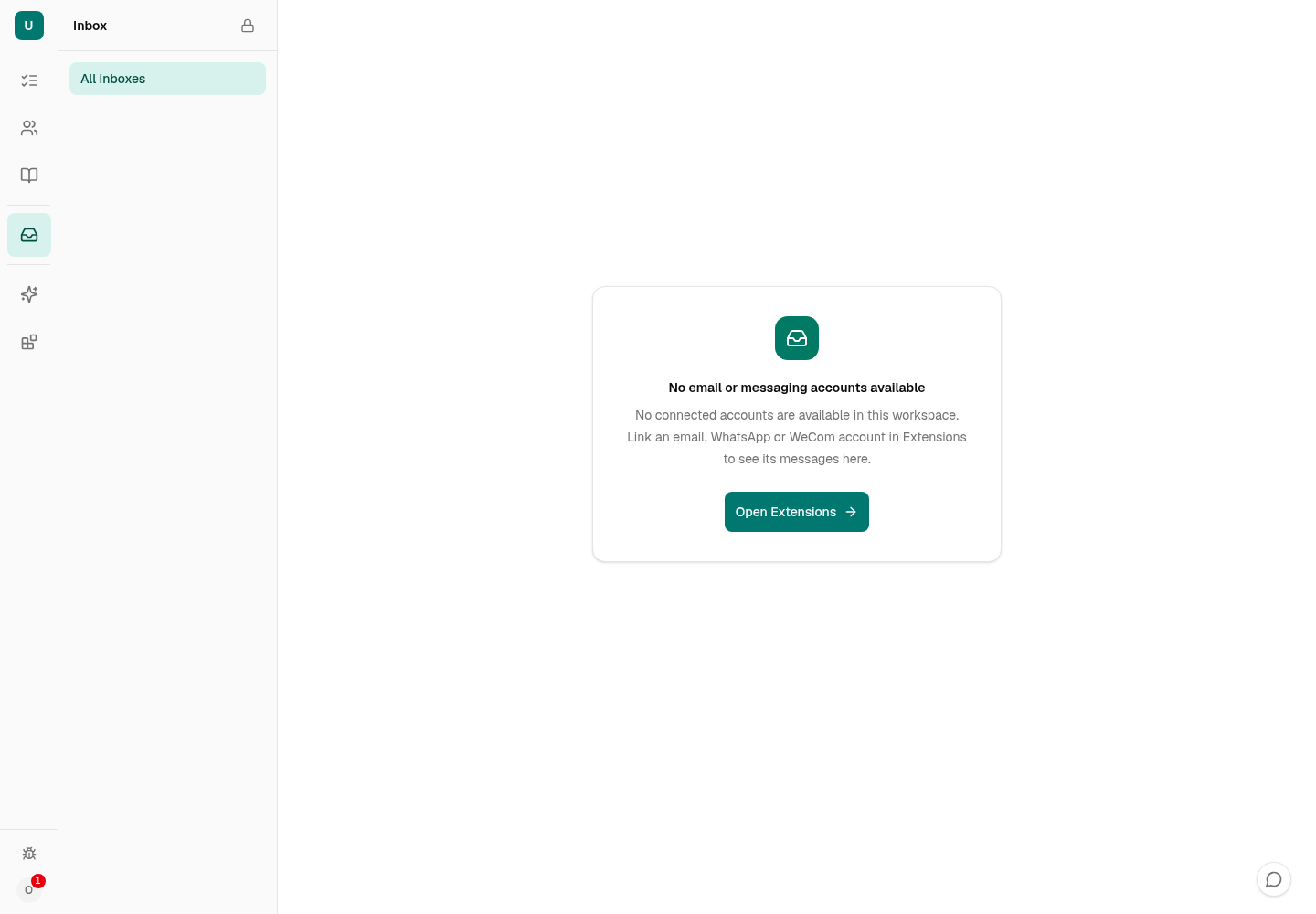
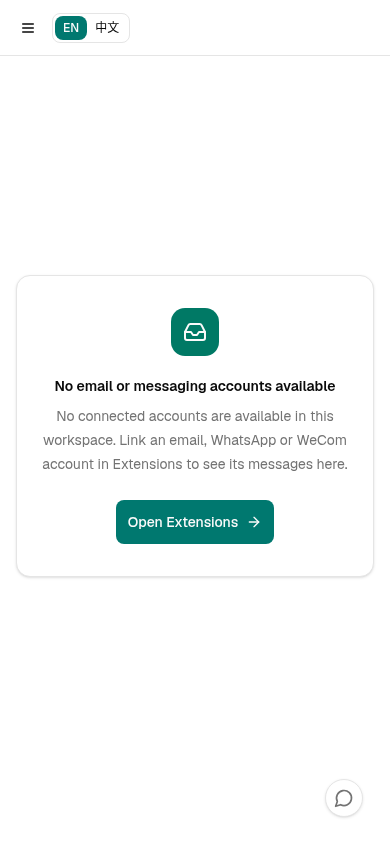
Before you begin: A mailbox must be connected (see Connect your mailbox). If the Inbox says No email or messaging accounts available, no readable account is available in your current context. Check the organisation, account access and Email setup; this message does not establish that the organisation has no connected account. A reply task goes to the customer's owner while they can read the mailbox, otherwise to the mailbox's owner.
Read the Inbox
- Choose All inboxes or one account. Switch Conversations and Emails to change the grouping. The sidebar offers Inbox, Sent (Atlas sends), Starred, Archive, Trash, Spam, Needs you to sort and To link. Personal folder actions are available in staging; an external mail-client send is not guaranteed to appear in Atlas Sent.
- Use Sort Filters for Inquiry, Quotation, Sample, Purchase order, Invoice, Logistics or Other. Open Needs you to sort or To link to work through the review queues. Emails that need an answer appear under Workbench → Waiting for your reply. If you answered in another mail client, use Mark as replied on its Workbench task.
- Under To do, Sort now opens the emails that need you to sort. Each row shows its topic and, once confirmed, its customer. Need link opens the conversations still waiting for a customer, one after another, each with the Link to customer form.
Sort emails
- Open an email Atlas was not sure about. In the row above the email, beside Link to customer, choose To sort. Or choose Sort now to work through the queue; it shows your place, such as Sorting · 1 of 5.
- The Sort this email window lists every Topic, one per line. Atlas's pick is already selected and tagged ✦ Atlas suggests, with a one-line summary that starts with where Atlas read it: From this email: …, or an earlier email it read, which you can open. In a thread with several emails, the small line at the top says which one you are sorting, such as Sorting Li Wei's email of 12 Oct.
- To use a different topic, click it once. Also mentions is folded; open it to tick other topics the email covers. Choose Save as …, followed by the topic you picked (for example Save as Quotation). New personal topic… is visible only to you; colleagues see that email as Other.
- In the To sort queue (Show › To sort) the same form sits in the page and the button reads Save as Quotation and next (with the topic you picked). Use Skip for now to leave an email waiting. When the queue ends you see All sorted.; choose Back to the inbox.
- For an email Atlas already sorted, choose Change; it opens the same window.
Sorting does not ask whether the email needs a reply. Atlas keeps its own judgement on that, and answering is handled in Workbench › Waiting for your reply.
Link emails to customers
- Choose Link to customer on a conversation, or open the To link queue with Link now, where the same form sits in the page. One window holds one form and one save.
- Customer is a single search box. Atlas's matches are listed first, and typing searches all customers. The last option is + Create new customer “Kestrel Audio”, named from the email, for example from a signature line such as “Kestrel Audio”.
- If you create a new customer, Atlas asks only for Company name and Country (optional), plus a tick box to add the sender as the contact.
- Deal (optional) is in the same form. Pick one of the customer's open deals, a new deal (name and stage, filled in when the email is about a sale; clear the name for no deal), or No deal.
- Choose Link, or Create and link for a new customer.
Expected result: Sorted emails leave the queue, and a linked conversation shows Linked to Kestrel Audio · deal “Charging case shells”. with Undo, which removes the link but keeps any customer or deal it created. Its reply task and draft are in Workbench › Waiting for your reply.
Your answers are used as examples when Atlas sorts similar emails. Inbox organisation actions change Atlas state; sending a message contacts external recipients. Wording checked against the staging source (2026-10-12), not a live walk. Nothing was connected, sent or saved while writing this page.
Read and organise a message
Staging preview — not available in the verified production release: The personal Star, read/unread, Archive and Trash controls below were checked in staging source ef39dda8b. Production web 3d1fbb9f supports opening and filtering Inbox messages; these newer folder actions are not its user path.
- Choose the right account, then open a conversation to read the full message, sender, recipients and attachments. Search covers loaded mail. Use the account picker and folder links to return to the intended view.
- Use the row or conversation actions for Star, Mark read/unread, Archive, Move to Trash or Recover. These personal states change your Atlas view only, not provider folders. Spam/Not spam is an Atlas classification shared with that mailbox’s readers; it also leaves provider folders unchanged.
- For several conversations, select rows and use the bulk toolbar. Read the result count: some items can succeed while others stay unchanged. If a save conflicts, Atlas reloads the latest state; inspect it before retrying. If the list fails to refresh after a save, reload before deciding the action failed.
Reply, forward or write a new email
Verified production path (web 3d1fbb9f): Open the received email and choose Reply. Atlas opens its reply task in Workbench; if the email is unlinked, link it first. Review the task’s source and draft, edit it, then use the Workbench Send control and its confirmation with a connected sending mailbox. Alternatively, copy the draft into your mail client and choose I sent it only after sending there. Workbench can show an unsent retained draft from an Inbox message; open its review link before acting.
Staging preview — not available in the verified production release: The inline Reply/Reply all composer, separate Forward, new-message Compose, Atlas-only folder actions above and outbound attachment picker below are present in staging source ef39dda8b. Do not look for these controls in production. For a new message, Reply all or Forward in production, use your existing mail client; for an Atlas reply, use the Workbench path above.
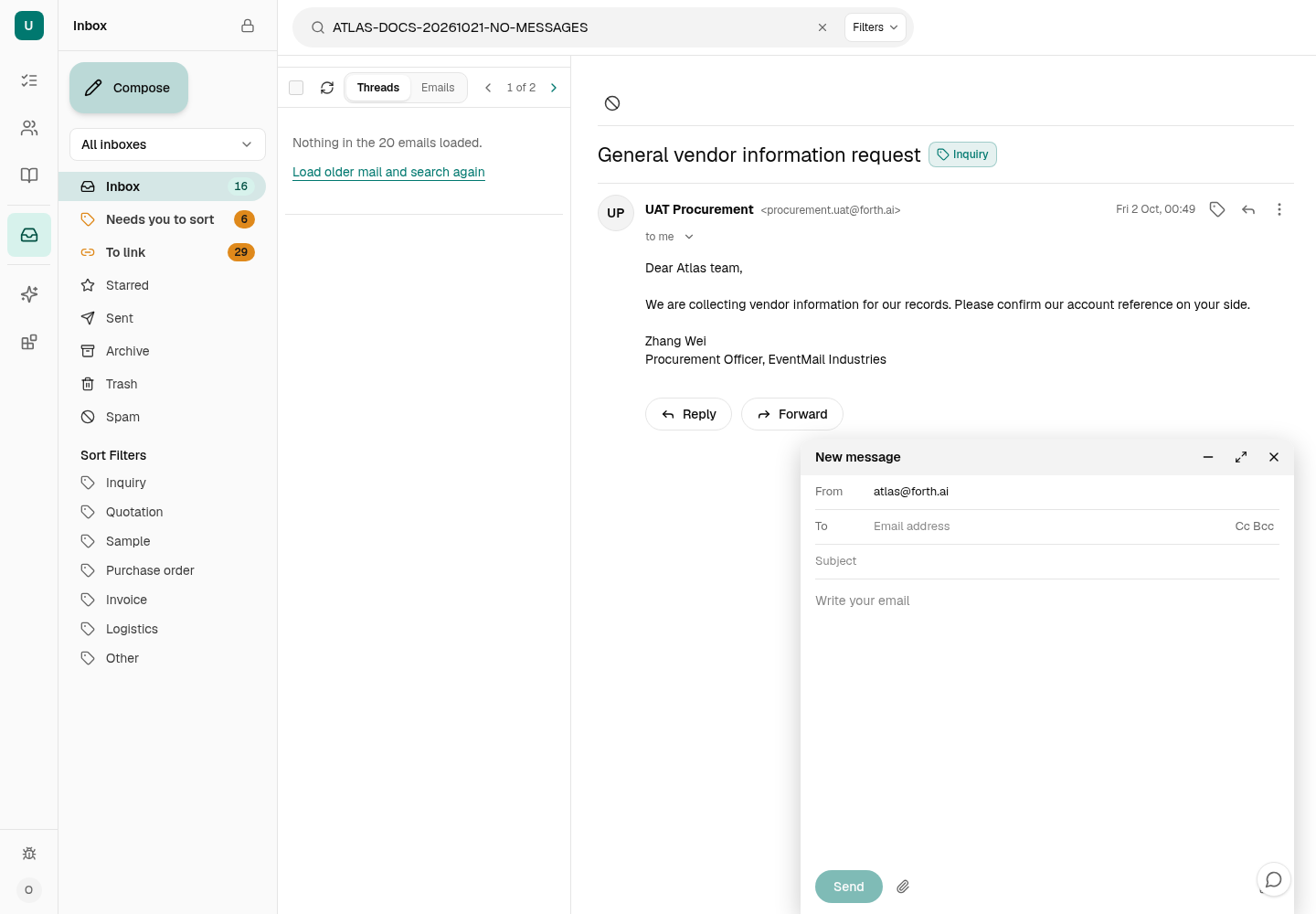
Before any send: Use a connected mailbox enabled for sending and review the exact From, To, Cc/Bcc, subject, body and files. Sending is an external effect.
- Open a received email and choose Reply or Reply all. Edit the inline draft; its saved copy is also in Workbench. Reply all adds other original recipients only after Atlas checks them. If it cannot add everyone, the UI says the reply will go only to the sender; review Cc/Bcc yourself. If the source has a different Reply-To address, review that destination in Workbench before sending. A thread assigned to a colleague remains theirs.
- For Forward, use the inline composer’s mode menu to prepare a forward task draft, shared with Workbench. The message-menu Forward action opens its draft in Workbench instead. Check recipients, subject, quoted source, and which source attachments are selected. Save edits before the final send review. If the source changed, start a new Forward and review it again. An oversized or unsafe source is refused without shortening it. Forwarding also has a 25 MiB limit for the complete stored email, including attachment encoding; a file within the 20 MiB file limit can still exceed this message limit.
- To start from scratch, choose Compose in Inbox. Select a ready From mailbox, enter one valid To address, optional comma-separated Cc/Bcc, a subject and a message. Attach files opens your computer’s file picker; it does not offer an Atlas document picker. Wait until every upload has settled; remove refused or wrong files before sending. Limits: 20 MiB per file, 20 files and 20 MiB total; empty, blocked program files and invalid names are refused.
- Choose Send, read the confirmation dialog and confirm only when the complete message is correct. If referenced documents are missing, the dialog identifies what will be omitted or removed; go back to fix it unless you intend that result. A successful send result means the provider accepted the message, not that the recipient received it. Check Atlas Sent for its copy; storing that copy can fail after an accepted send, so an empty Sent folder does not prove that resending is safe. New-message Compose is a temporary window, not a saved Workbench task: minimising keeps it in the open page, but closing, reloading or leaving may lose unsent text and file selections. Copy anything you need to keep before leaving.
Recovery: If an inline draft cannot open, retry or open the task in Workbench. If the latest edit says it has not saved, keep the composer open or inspect its Workbench draft. If Atlas cannot confirm whether a send left, check Workbench for a task draft or Sent for a new message before another send. A refused sender, permission or rate limit needs its displayed remedy; repeated Send taps are not a safe test. The Inbox Forward may direct you to Workbench for its own draft and approval.
Tasks you create for yourself default to Private and are visible only to you. Assignments to other people are Team tasks, visible to the assignee, creator and organisation management. Visibility cannot change after creation. My Tasks initially filters to your assignments.
Study scope and screenshot provenance
Procedures verified on staging atlas.staging.forth.ai, 22 September 2026, web build 027732e (ref staging), signed in as an owner, an admin, a manager and two reps of one ordinary organisation. That walk was read-only: no decision was accepted, rejected or dismissed, no message was sent or retried, no record or setting was saved, and no paid agent run was started. Visibility differs by role and release settings; sections that need a platform-operator account say so and were not re-observed. Staging advanced from web build c848b7e to 027732e during the walk; the Today screenshots and every quoted Today wording come from 027732e, and the only difference between the two builds is on Today (singular overdue wording, a dropped tier label and a sort fix). Screenshots dated 2026-09-07 come from the earlier production study of atlas.forth.ai at web revision 0af15ad and are kept where the screen is unchanged; screenshots dated 2026-09-22 are staging. One sender address was masked. Destructive, financial and sending procedures are described from the deployed source and were not executed.