Atlas · User Manual
Knowledge
Find reliable source material, connect it to a customer, and follow your company’s guidance.
What Knowledge helps you do
Knowledge gives you the source material and company guidance behind a customer conversation. Use it to check a product claim, find a customer’s requirements, or prepare an answer with references you can open.
There are two parts: documents hold facts and evidence; Policies, Procedures and Standards describe how your company works. Uploading a document does not turn its contents into an enforced rule.
For example, keep your meeting notes in My Docs, consult the shared product specification in Company Docs, and link the relevant specification to the customer. Then ask Knowledge QnA a focused question and check its citations before using the answer.
Choose the right document space
| Space | Use it for | Who can see or change it? |
|---|---|---|
| My Docs | Your working material: meeting notes, research, an unfinished proposal. | Personal library files belong to you. Other members, including managers, do not gain access just from their role. Uploading requires Knowledge files contribution permission. |
| Company Docs | Shared reference material: product specifications, price guidance, approved sales collateral. | Organisation members can read it. Company Docs management permission is required to upload or maintain it. |
| Customer docs | Material associated with a customer: their requirements, an uploaded attachment, or a link to a library document. | Customer access governs customer uploads; a linked library file also keeps its own access rules. Linking your private file does not make it readable by everyone who can see the customer. |
Open Knowledge and choose the space before searching. Use folders and search to narrow the list; clear the search if a file seems to be missing. A file in another organisation will not appear here.
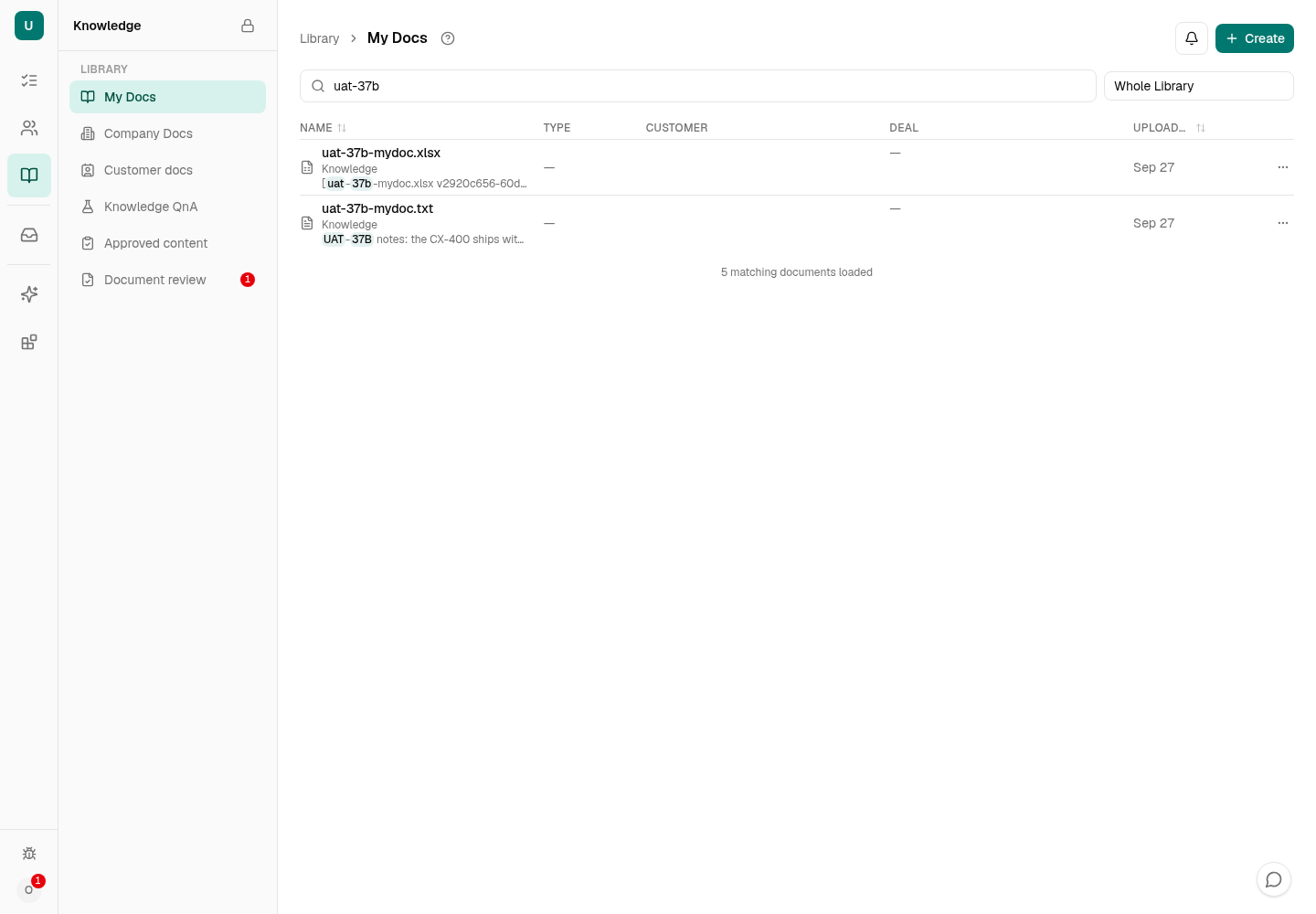
- Choose My, Company or Customer docs
- Create a folder or upload files
- Search the current library
Associate a library file with a customer
- Open the customer record, then Files → Linked knowledge sources → Link source.
- In Link a knowledge source, search for a file you can access and select it. Selecting adds the link immediately.
- Return to Knowledge → Customer docs or the customer record and open it to check the association.
A link points to the existing file; it does not create a copy. Later changes to that file appear through the link. Removing the link keeps the original. Deleting the original makes it unavailable through the customer link. See customer documents for the customer-side upload path.
Share useful personal material with the company
The file menu offers different actions according to your permission:
- Add to Company docs moves the original from My Docs into the company folder you choose. It becomes organisation-readable. Select the folder and confirm with Add; create a company folder first if none exists.
- Suggest for Company docs submits a snapshot for review. Track it in My suggestions. Approval creates a separate company copy; your private original stays in My Docs. Check the copy’s processing status before relying on it.
You can withdraw a pending suggestion. After approval, View Company copy opens the new file. A later edit to your private original does not update that independent copy.
Upload a document to Knowledge
Start in My Docs for personal material. Use Company Docs only when the file is ready to be shared and you have management permission.
- Open the destination space and folder. Choose Create → Upload file, or drag files into the library. Drag individual files, not a folder.
- Check each upload’s result. A duplicate offers a link to the existing document; use it before uploading again. If the destination folder disappeared, choose another folder for the refused file.
- Open the file. If Confirm is offered, inspect the original and available details first; confirmation starts supported processing. Review Extracted once it is ready. For a failed file, read the reason and fix the cause before Retry.
- Check both the document’s status and its extracted content as described below. A visible original preview alone does not mean Atlas can use the file in answers.
Closing the upload progress dialog does not cancel the batch. Each file has its own result, so check the other files when one fails.
File limits and video preparation
Each upload can be up to 1 GiB (1,073,741,824 bytes); organisation library storage is limited to 2 GiB. Files over 50 MiB (52,428,800 bytes) stay stored without automatic processing. For originals over the 50 MiB preview limit, use Download original.
Reader limits also apply: text/Markdown/CSV and PDF, 25 MiB; images, 8 MiB; Office/XLSX, 32 MiB. Storing a file does not guarantee a supported processing action.
For MP4, MOV or WebM up to five minutes, open the file and choose AI Readiness. Use a WebGPU-capable browser and keep the page open through processing and saving. For a video over 50 MiB, select the matching original from your device when prompted. Check the saved transcript, frame descriptions and timestamps against the video; sampled frames do not cover every moment. Closing the page stops this browser-based work.
Check, update or remove a source
Before using an important claim, open its document and compare the source with what Atlas read.
- Choose Original to inspect the stored file, then Extracted to see the passages Atlas can use.
- Read the status and semantic-search coverage. If extraction is partial, inspect the named gaps in the original. A Ready file can still have incomplete evidence.
- Check the exact claim you need—such as the model, connector and power rating—rather than relying on the filename or a short summary.
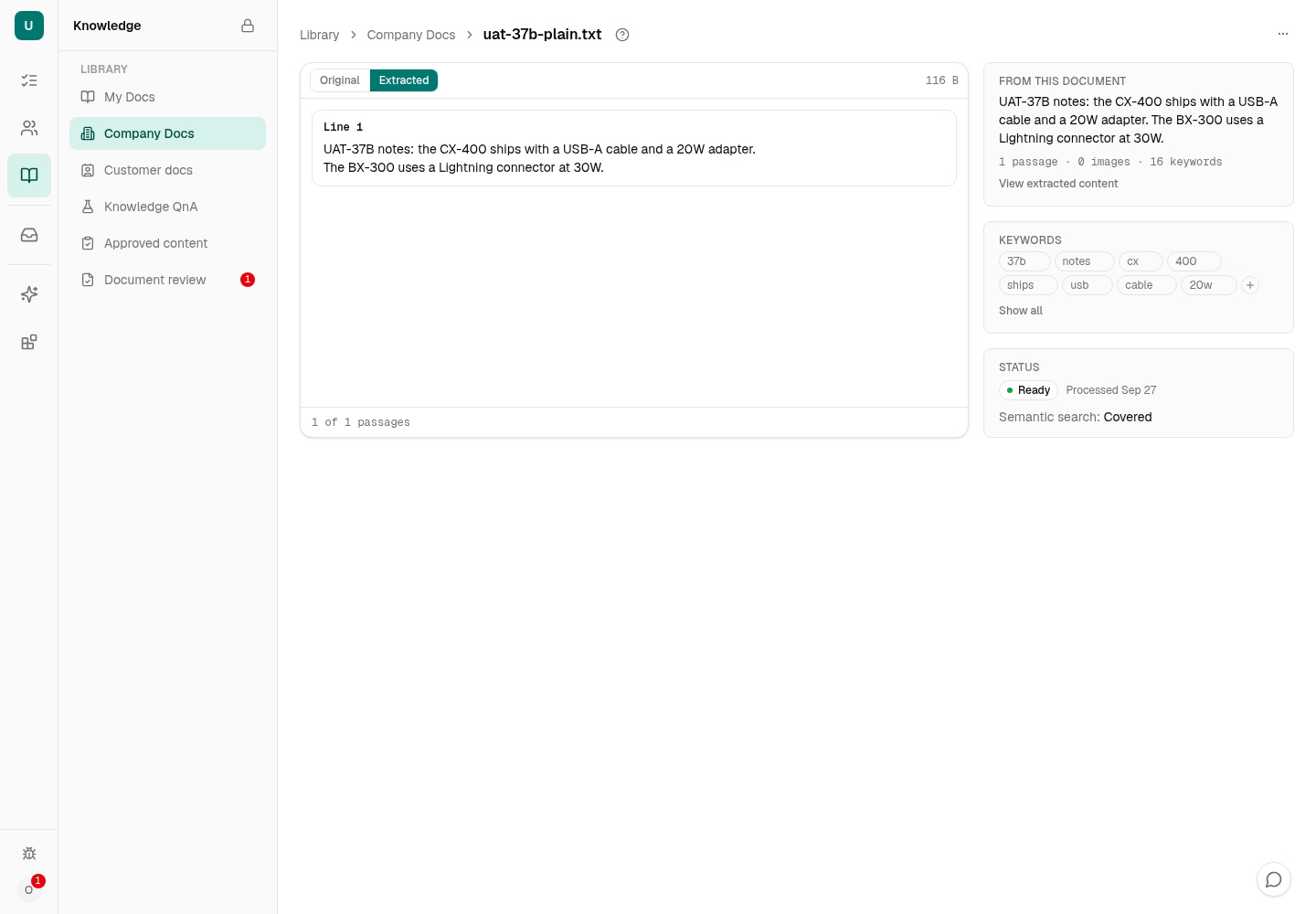
- Switch between Original and Extracted
- Check the passages Atlas actually read
- Check processing status and semantic-search coverage
If Atlas asks you to review proposed extracted information, use Document review and compare it with the source before confirming. In My Docs, the attention view highlights files needing your action.
When the source changes
Rename changes the title; Move changes its permitted folder. A move requires write access at both ends; moving to a root folder alone does not change the document space. Older imported company files cannot be moved into a personal folder.
There is no upload-new-version control here. Upload a changed original as a separate file and review the customer links and references that should use it. Re-extract rereads the existing original; it does not replace that original with a newer file.
Before Delete, check the file’s name and space. The confirmation removes the file and its stored extracted content; existing customer links can become unavailable. Choose Cancel if you only wanted to remove a customer association. Past feedback may remain as history.
Recover missing or unreadable extracted content
If the original document previews but extracted content is missing, unreadable, wrong or incomplete, check its status.
Both Retry and Re-extract require supported formats within reader size limits. Knowledge files contributors can Retry failed files after fixing the reported problem. Personal owners or Company Docs managers can Re-extract ready nonvideo files to reread the stored original. Improve understanding requires Company Docs management permission where available. Customer-source files may lack these controls. Recheck results; processing cannot recover information absent from the source.
Keep the library easy to find
- In the intended document space, choose Create → New folder and name it for a useful topic, such as “Product specifications”.
- Use a file’s Move action to place it in a folder you may write to. Check the new breadcrumb afterward.
- To tidy up, rename a folder or move its files out before deleting it. Atlas refuses to delete a nonempty folder.
Your personal folders belong to you. Company folders require Company Docs management permission. If a file disappears after a move, check its new space, folder and search filters before uploading another copy.
Get a sourced answer for a customer
Use Knowledge QnA when you want an answer grounded in documents you can inspect—for example, “Which connector and power adapter does this model include?” You need accessible, processed sources; asking and retrying can count toward AI usage.
- Open Knowledge → Knowledge QnA. In Ask from, select the relevant files or folder. Use All knowledge when you do not know which document contains the answer.
- If company guidance matters, under Also include, select Policies, Procedures or both. This adds released guidance to the question’s sources when the feature is available.
- Enter a focused question of up to 500 characters and select the upward-arrow Send button. You can select up to 50 documents; All knowledge uses at most 200. Narrow the scope if Atlas reports omitted sources.
- Open the answer’s source links and check the cited passages against the original. If the evidence does not answer the question, find a better source or say what remains unknown.
- Use a checked answer to prepare a customer response draft if offered. Choose the customer when prompted, then review the draft in its destination. This QnA flow does not send the response.
Follow-up questions stay in the conversation. Start over begins again. Retry reuses the scope of the original question: selecting different files now will not change that retry. To use a new scope, submit a new question.
Mark an answer helpful or report the problem with a short explanation and the relevant source. An old citation may retain its title after access changes; a visible title is not permission to open the file.
If the answer is missing or seems wrong
- File unavailable: check organisation, access and processing state. An unprocessed file cannot supply passages.
- Wrong product or customer: select fewer, more relevant documents and ask a new question.
- Unsupported claim: inspect the original, report the answer and correct or replace the source where you have permission. Feedback alone does not rewrite the document.
Understand the company’s rules
Documents tell you what is true; Policies explain what the company permits or expects. A product PDF might state a warranty period. A policy might require approval before promising an exception.
When available in your organisation, open Knowledge → Enterprise memory → Policies. On a customer record, Policies that apply here can show published policies related to the customer; open Policies to read them in full. The actual warning or block is shown when a covered action is checked. If the section is unavailable, ask your administrator about feature access.
- Open a policy and read its Published version, including the cited sections. Draft edits are not the published policy.
- Check its status. Reference only is guidance, not an active action rule. A future effective date or Warn-only until… changes when or how rules apply.
- Read any rules alongside their policy sections. Rules can cover task creation, record changes, draft preparation, external communication or administration, with conditions such as actor role or customer class.
Rules express warnings or blocks for covered assistant actions. Their availability in an editor does not mean every product action is covered. Read any policy warning or refusal shown for the particular action, and review the exact proposal before approving it. Publishing a policy does not itself send a message, change a record or start a task.
For policy maintainers
Rule management requires an ordinary organisation manager or administrator with effective Knowledge write permission; a job title alone does not grant it. Save the policy sections, add rules linked to those sections, then preview the category rules against recent proposals (up to the last 30 days). The preview shows possible matches without executing the proposals or publishing the rules.
Review the release settings before publishing. Afterward, inspect Published version and the rule status. Later draft edits leave that release intact. Use its history to inspect or restore a release; restoration does not rewrite the current draft. Resolve validation or stale-version errors before retrying a save.
Use Procedures for the steps to follow
Policies set boundaries. Procedures describe a method—for example, what to check before drafting a proposal and what to record afterward.
- Open Knowledge → Enterprise memory → Procedures.
- Search for the procedure and read its before, branch and after steps, plus any linked policy.
- Follow the applicable steps in your customer work. This page stores definitions; it has no Run workflow action.
For procedure maintainers
With Knowledge write permission, choose New workflow or Edit. Enter the title, optional category and policy, then the Before, Branch and After lists as JSON arrays of objects. Each list allows up to 100 objects. Fix validation errors before saving and reopen the definition to check it.
Know when a customer needs attention
Standards show your organisation’s contact expectations: intervals by customer class, thresholds for cooling or silent customers, and which logged contacts count.
- Open Knowledge → Enterprise memory → Standards.
- Find the customer’s class and read its interval and the health thresholds. Use the default for an unlisted class.
- Check the level-change table to distinguish automatic changes from proposals you must confirm. Read the version line if the standard differs from what you expected.
This is a read-only reference. Authorised maintainers use Edit in Settings › Sales & CRM to change it.
Related guidance
- Built-in permissions describes the assistant’s authority; it does not replace your own access permissions.
- Approved content is a governed source registry, separate from a file merely being in Company Docs. Access depends on Knowledge permissions.
- Outreach playbooks, in Settings → Sales & CRM, define cadence and drafting guidance. They are separate from the document library and Procedures.
When you need help maintaining knowledge
If a shared source is wrong, send its maintainer the document link, the incorrect passage and the correction needed. Keep a checked original available while the issue is resolved.
- Answer feedback: authorised stewards can inspect reported questions, answers and source context in Human feedback. A report’s handling status does not itself fix a source or publish a product change.
- Company suggestions: reviewers inspect the submitted snapshot and the new company copy’s extraction result. An approved copy with failed extraction still needs attention.
- Learned lessons: authorised reviewers can inspect information candidates and their evidence under Enterprise memory. Method proposals link to the AI team for review; reading them does not publish a method or change company policy.
For pipeline, customer fields, activity rules and outreach settings, use Settings → Sales & CRM. Those controls belong to sales administration rather than document storage. For access issues, see roles and effective permissions.